
A school fee often arrives all at once, and that can strain any family budget. A savings goal splits the total into regular deposits, so the money is ready when the school asks for it. This guide shows you how to set one up in the SkoolWisely app, from start to finish.
What you need before you start
- The SkoolWisely guardian app, installed and activated
- A funded wallet
- The name of your child's school and, to save for a specific school, the bank details of the school's account
- A rough idea of how much you need and how often you can save
Steps to create a savings goal
Step 1: Open the Savings Goals screen
Open the app and go to Savings Goals. Your existing goals appear here, under All, Active, Completed and At Risk. Tap New Goal to start.
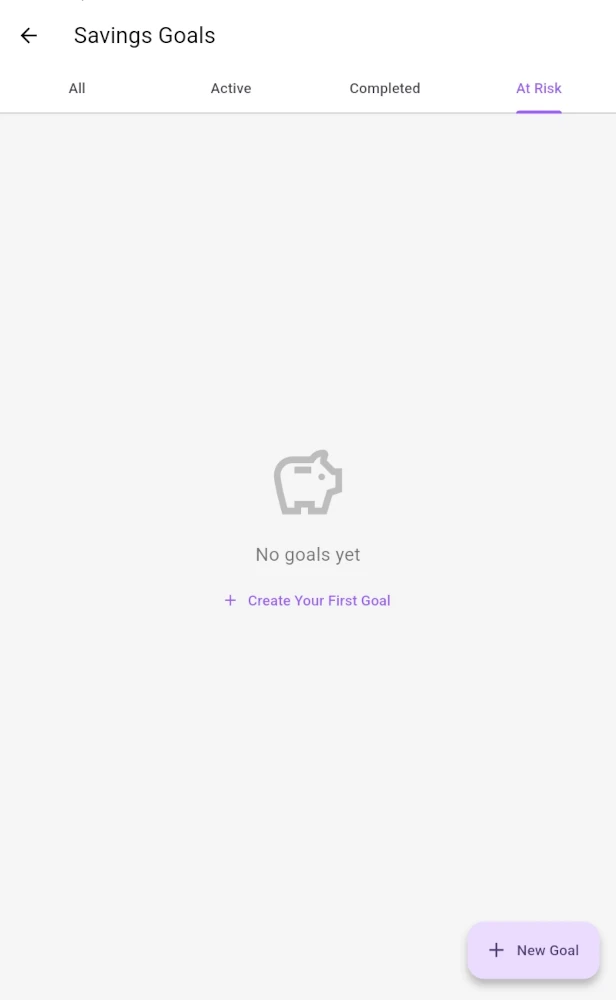
Savings Goals screen showing the tabs and the New Goal button
Step 2: Choose a goal type
- Linked to Student: your child's school is already on SkoolWisely. Once the goal completes, invoices from that school can be paid from the goal.
- Generic Savings: your child's school isn't on SkoolWisely yet, or you want to save for any school. Enter the school name and its bank details. You can link the goal to a student later.
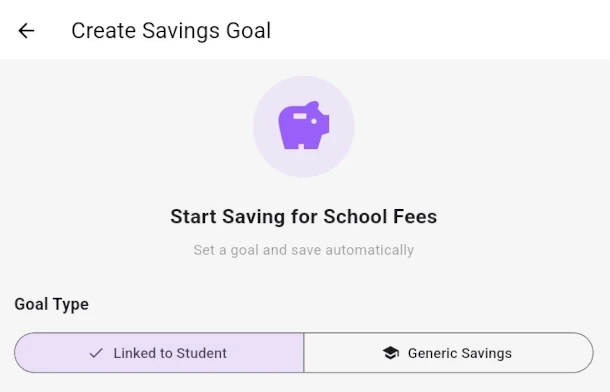
Create Savings Goal screen with the Goal Type selector
Step 3: Enter the school account details (generic goals only)
For a generic goal, enter the school's bank name, the 10-digit account number and the account name. The app checks the account name before you continue. If you've saved a school's details before, pick it from Use a saved school account to fill the form in one tap.
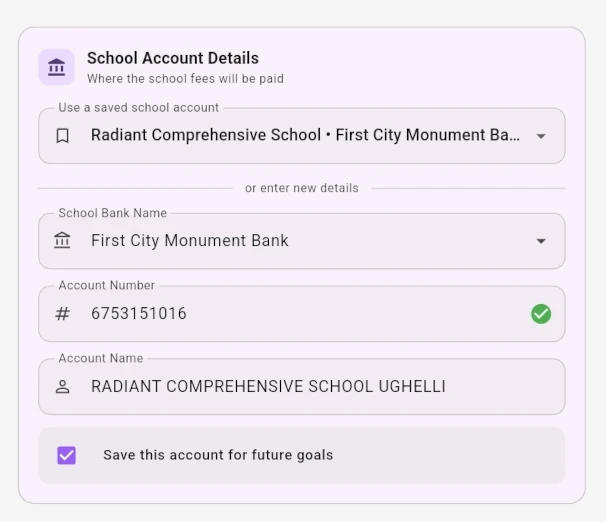
School Account Details section with the saved-account dropdown and verified account name
Step 4: Choose how the school is paid
Under Payment Mode, pick one option:
- Automatic Payment Authorization & Payment to School: you agree in advance, and the school is paid automatically when the goal completes.
- Manual Payment Authorization & Payment to School: you approve and pay the school yourself when the goal completes.
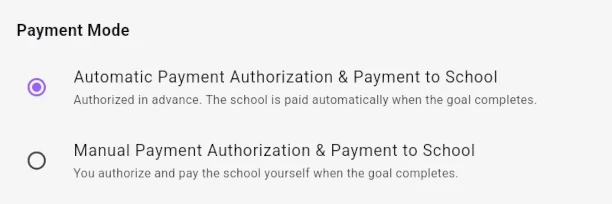
Payment Mode options
Step 5: Set your target, frequency and start date
- Goal Name: something you'll recognise, such as "Term 2 fees".
- Description (optional): a note for yourself.
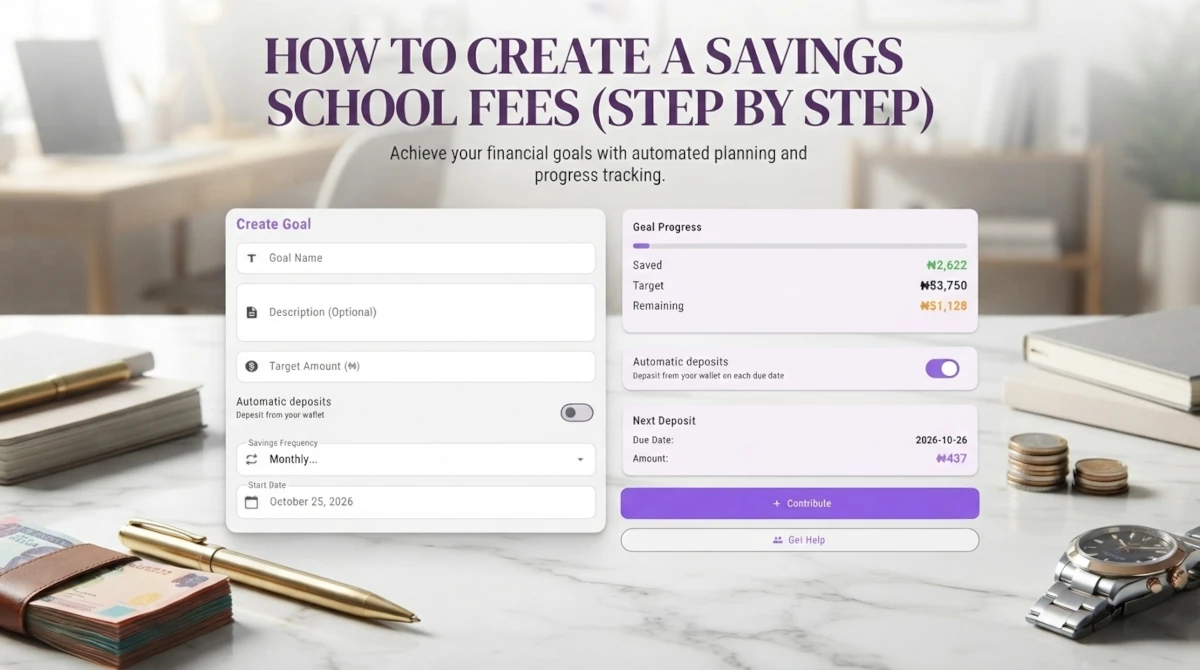
- Target Amount: the school fee you want to save. The minimum is ₦200.
- Savings Frequency: daily, weekly or monthly.
- Start Date: the day you want to start saving. You can pick a date up to 30 days ahead.
Goals run for a maximum of four months, so pick a frequency that fits that window.
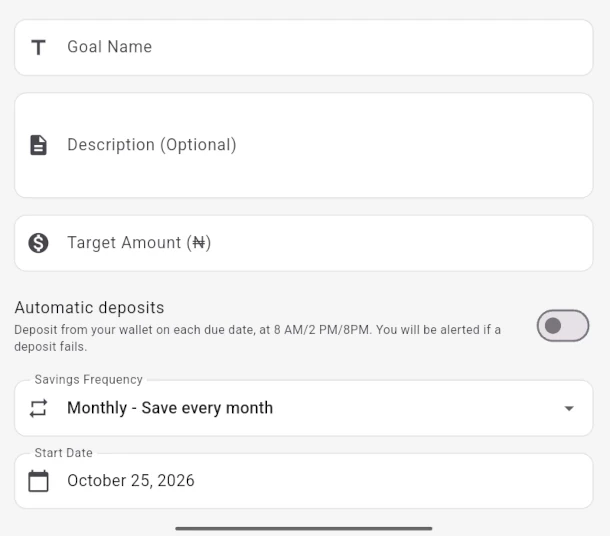
Goal name, target amount, frequency and start date fields
Step 6: Understand the fee breakdown
As you type a target amount, the app shows a fee breakdown. The service fee depends on the amount:
- Below ₦50,000: 10%
- ₦50,000 to ₦100,000: 7.5%
- ₦100,000 and above: 5%
The breakdown also shows how much each deposit is and how many deposits you'll make. The service fee is charged when the money is paid to the school.
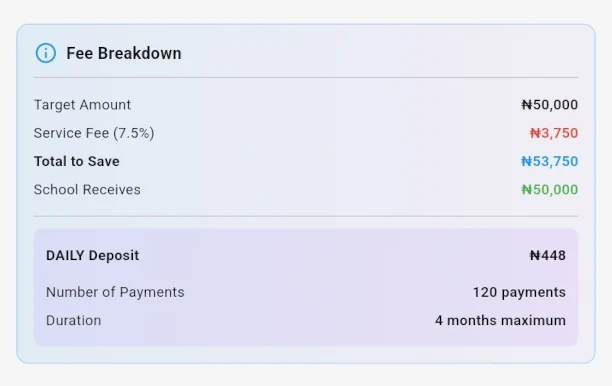
Fee Breakdown card showing the deposit amount and number of payments
Step 7: Turn on automatic deposits (optional)
If you don't want to remember each deposit, turn on Automatic deposits. On each due date, the app tries to deposit from your wallet at 08:00, 14:00 and 20:00. If a deposit can't be made, you get an alert that day so you can top up the wallet.
Automatic deposits are off by default. You can turn them on or off later from the goal's details screen.

Automatic deposits switch on the Create Goal screen
Step 8: Create the goal and check it
Tap Savings Goal. Your new goal appears in the list with its progress bar, the amount saved so far and the days left. Tap the goal to see its details, deposit history and next deposit date.
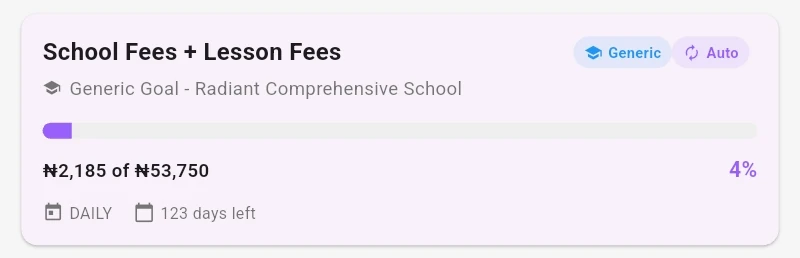
Savings Goals list with a new goal card, showing the Auto badge
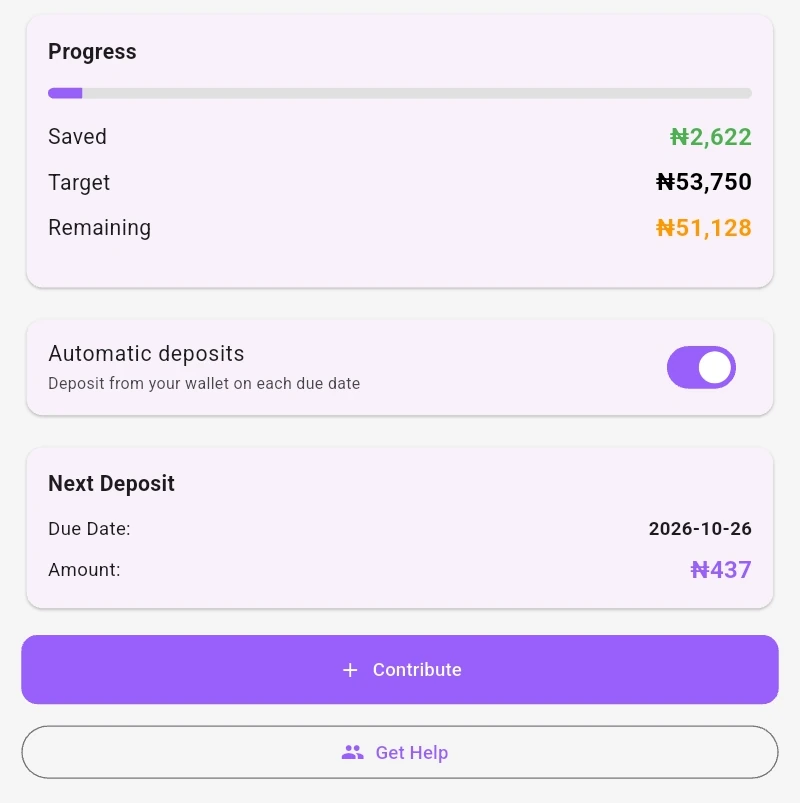
Goal details screen with the next deposit and automatic deposits switch
What happens if you miss a deposit?
If a due date passes with no deposit, the app records one missed deposit for that date. A goal is marked At Risk after three missed deposits, and you'll get a reminder. A deposit resets the count to zero. Top up your wallet a day or two before each due date.
Tips for saving for school fees
- Start early. A longer runway means smaller deposits.
- Match the frequency to your pay. If you're paid monthly, choose monthly.
- Save the school's details once. Reuse them for every future goal.
- Turn on automatic deposits if your wallet is funded regularly.
Frequently asked questions
Can I save for a school that isn't on SkoolWisely? Yes. Create a Generic Savings goal and enter the school's bank details. You can link it to a student later, once the school joins.
What's the minimum savings target? ₦200.
How long can a goal run? Four months from the start date.
Can I pause a goal? Yes. A paused goal stops taking deposits until you resume it.
What does the 10% fee on cancellation mean? If you cancel a goal, a 10% fee applies to the amount saved.
Start your first goal today
Set up your first school fees goal in a few minutes. Open the SkoolWisely app, tap New Goal, and follow the steps above.